Never in my wildest dreams did I think I’d be excited about a scrapbooking tool. I’m not a scrapbooker. Never have been. Too much….stuff. Too much time. Too expensive. And I’m honestly not creative or patient enough to come up with a variety of worthwhile page layouts.
My other complaint with scrapbooking. There often seemed to be so many different papers, and buttons, and ribbon, and other stuff I can’t even identify, the pictures looked lost. And for me, the photographs are what matter. And the STORIES those photos tell.
So when I came across Project Life, I was sold. To me, Project Life is about the STORY, not the stuff.
It’s SIMPLE. I’m a simple kind of girl.
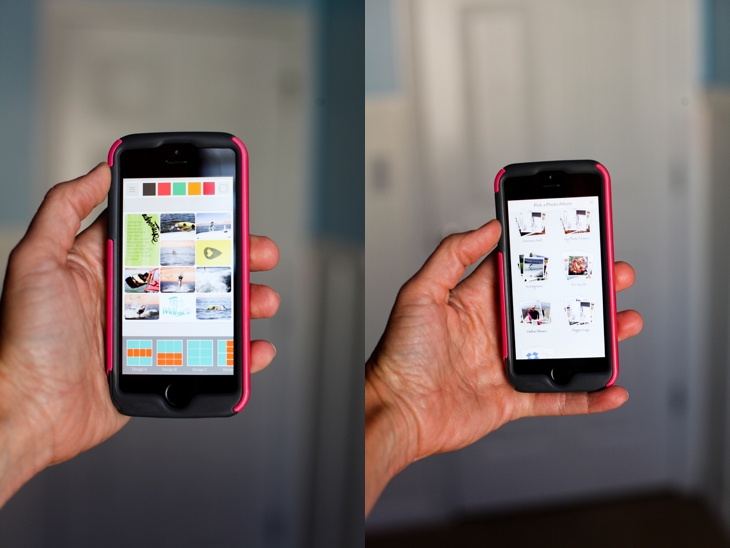
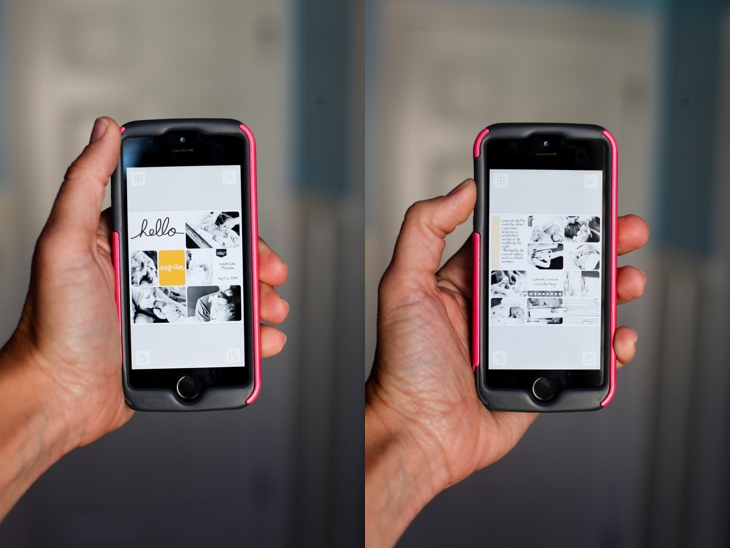
I started using the Project Life physical products and completed 5 albums. And then. Then the game changer. The team at Project Life came out with the Project Life app. And now I can “scrapbook”, document, memory-keep, story tell, with my THUMBS. While I’m in the carpool lane, or watching TV, or waiting at the soccer field. Anywhere. Everywhere. No mess. No fuss. No getting stuff out. No cleaning stuff up. And it’s all safely stored where my two year old can’t mess it up while in production.
It’s ridiculously simple. And fast. And easy. And everything I’m looking for when I’m documenting our family’s story. The pictures take the lead, and the journaling cards and filler cards add a little extra touch. My goal is to have the pictures tell the story, then add a little with words if I have to.
If you watch this quick 7 minute video and you’ll see how EASY it is to make a page layout and document your stories. If you watch the entire thing you’ll see how:
to add photos, add kit journaling cards and filler cards, add and resize text and change fonts, resize photos, move photos from one spot to another, edit photos right in the app, and I’ll show you how to seamlessly PRINT those pages you create as well.
The app is so easy to use I didn’t even have to talk on the video. You can figure it out just by watching. So you get to listen to music instead.
Once you finish the pages and export them, you can print them wherever you want. Then you just get some 12×12 sheet protectors (use 40% off coupons on Michaels or Hobby Lobby) and put them in an album. Project Life has great albums you can get at Michaels or Hobby Lobby (again, use the coupon) OR you can use any album that will hold 12×12 sheet protectors.
If you want to see a FULL VIDEO TUTORIAL (with words) on how to use the App along with some tips and tricks I’ve learned along the way, check out this Project Life App Video Tutorial.
A few tips.
**The app comes with a few free “kits” (journaling cards and filler cards) as well as some page layouts. The app only costs $2.99 and even if you buy ALL of the available kits and page layouts, it’s still only around $20. And once you have them, you can use them over and over and over and over again. And they’re adding more kits and page layouts with updates.
**If you want to use pictures that are not on your phone, you can put them in a Dropbox folder. You have to install the Dropbox app on your phone. Dropbox can walk you through that.
**If you use the Dropbox feature, I recommend putting your pictures in different folders based on what pages you want them grouped together with. Makes it easier to keep track of which pictures you’ve used if you have them in smaller folder groups rather than one big huge folder with all the pictures in it.
**When you export your pages, you can print them or share them online. Definitely don’t skip the printing part. Kids loooooove looking at pictures of themselves in an actual physical album.
**The app DOES sync to other devices. So if you buy things on your phone, you can access them on your iPad and vice-versa. If you buy a kit or page layout on one device, you can then click on that same kit/page layout on the other device and click “restore previous purchase” or “Buy now”. Once you’ve bought it, it won’t let you buy it twice. It will ask if you want to download it again.
**When you print the 12×12 pages, the font is MUCH bigger than it looks (because you’re going from a tiny screen to a full-sized 12×12 print. Just something to keep in mind when doing fonts and font sizes.
A few things about Printing your pages.
When you export your photos from the app, they are automatically saved as high-resolution 12×12 photos. The quality of the pages will depend on the quality of your photos AND where you choose to print the 12×12 pages.
DO NOT send your photos to Instagram and then export from Instagram to print. Instagram reduces the size of pictures to 612 pixels by 612 pixels (so people can scroll through the feed fast without having to wait for large images to load) so your resolution will NOT be good as a 12×12. When you export from the app, export to your camera roll and order prints from there as well.
You can now print straight from the App. If you click on “order prints” at the bottom of the opening page it will walk you through ordering prints. The App prints through a professional photo company so the pages look excellent and are high-quality.
If you don’t want to print through the app, I also recommend using Persnickety Prints. This is why the owner, Chari, started the company in the first place. They were born to print scrapbooking pages. The prints are archival (meaning your ancestors will thank you because the pages will still be around) AND they are water-proof. Seriously!!! Waterproof. I had my doubts about that one so when I got my first order of 12×12 prints, I put one under the kitchen faucet just to see. And sure enough, waterproof. They also have a 100% money-back guarantee.
I recommend doing a batch of prints (every few weeks or every month) to save on shipping costs.
You can see on the video how to order prints at Persnickety directly from your phone.
And for those of you who like photographs, here are a few.
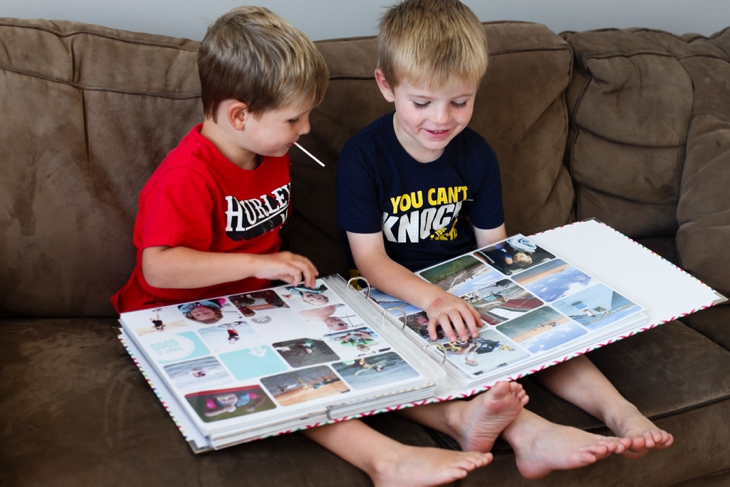
My kids love looking at pictures. Especially if they’re in them.
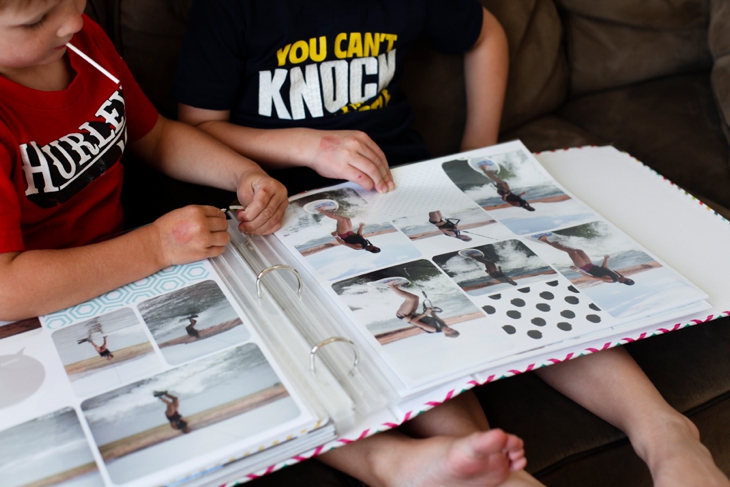
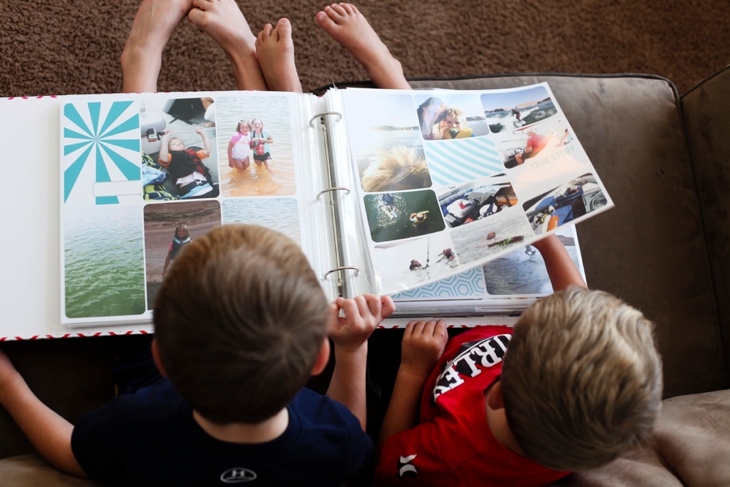
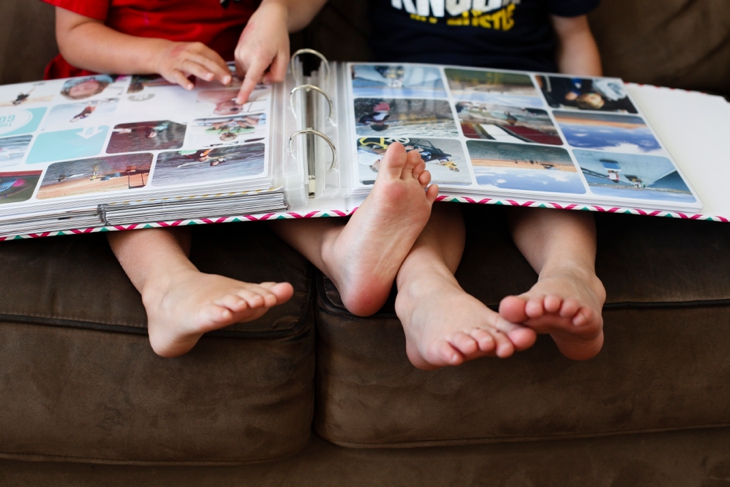 When I get my prints back, I lay them all out so I can see what order I want them to go in the album. I generally have a “helper” when I do this.
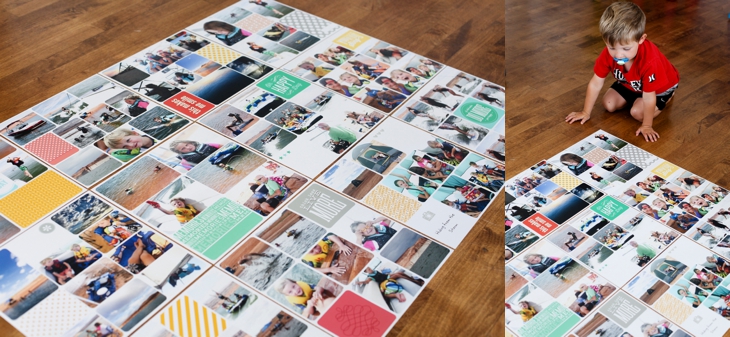
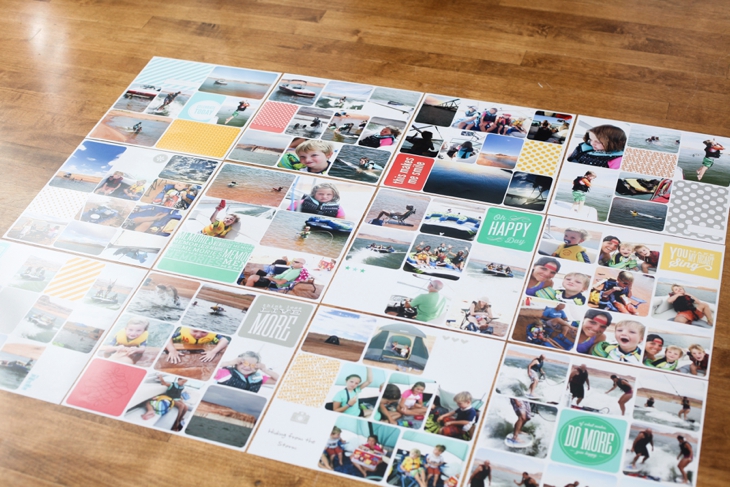
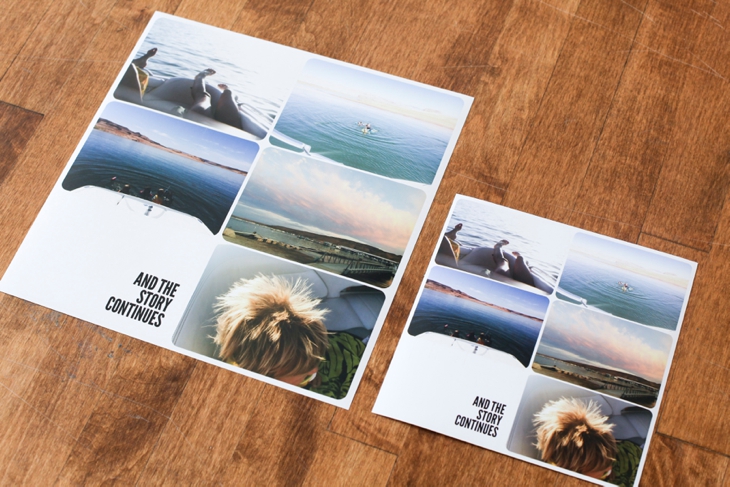
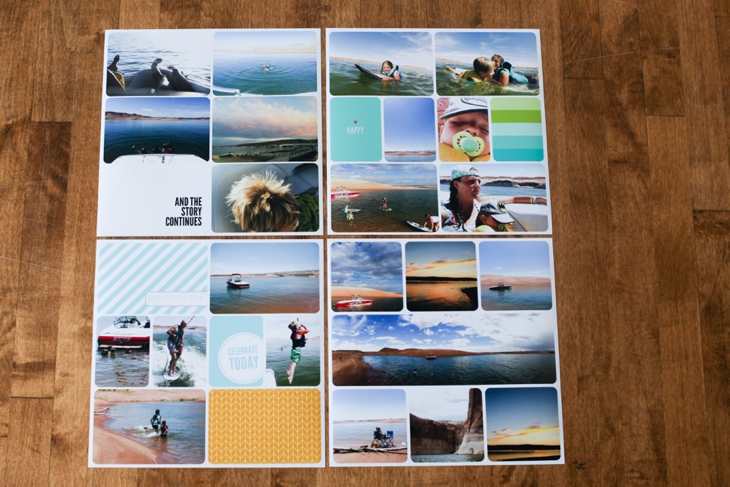 Here’s a comparison of the 12×12 print and the 8×8 print
And then they go into the albums.
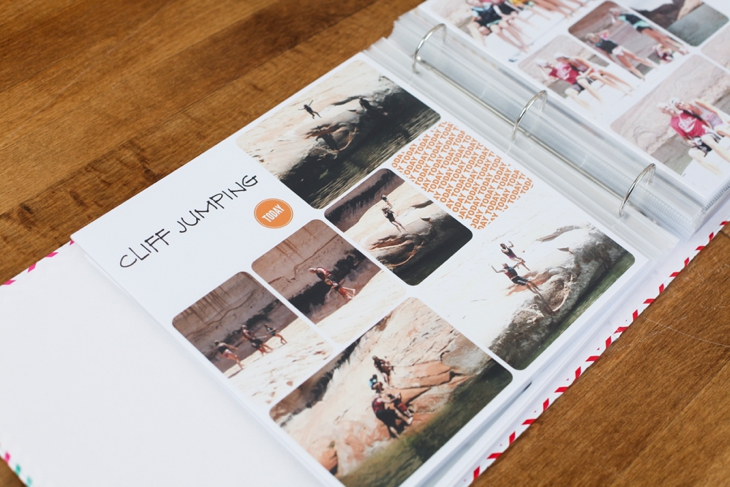
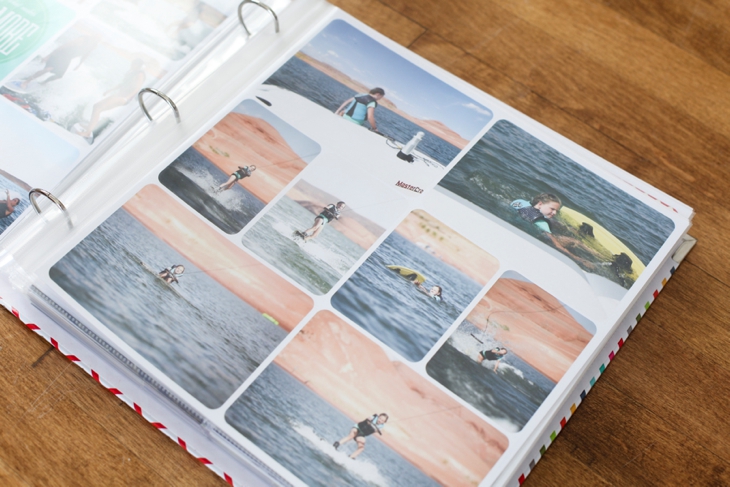 And for a closer view of some of the spreads I’ve done using the Project Life App
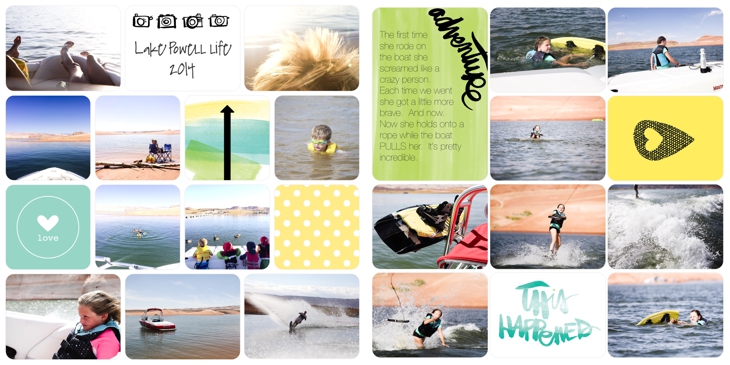
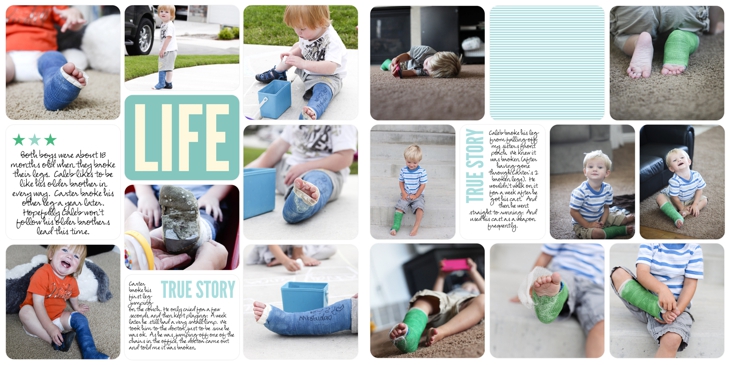
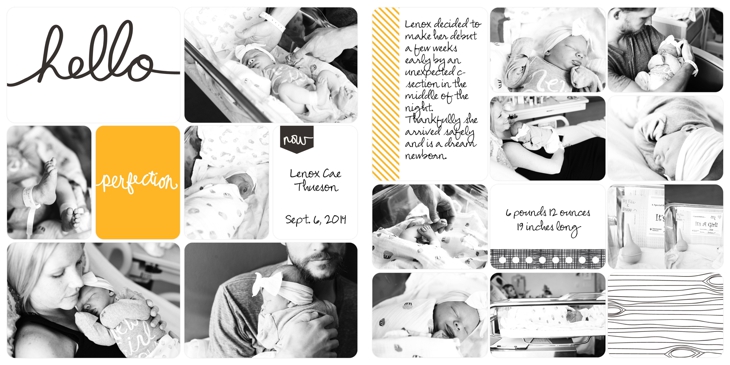
$.99. That’s what you pay to get started documenting your stories. It’s so so easy. I am not a lover of scrapbooking. I love having my stories documented and displayed. This process makes it bearable and dare I say fun.
One last tip. If you’re WAY behind on getting your digital photos in albums (like me) I recommend you START WHERE YOU ARE. Start with the present (or go back to the beginning of this year). Then if you have extra time here and there, you can go back and play catch up. Or, you can start with certain categories. I started by documenting all our vacations in layouts. Then I’ll go back and do holidays. Then I’ll try to keep current with each year.
You can do this!!!
If you have any questions, leave them in the comments below and I’ll do my best to answer them!
And, if you want to improve the quality of photos you take with your phone, get access to my TEN tips on immediately improving your phone photography so your Project Life pages will look even better!!!
You can go here for more ideas on displaying photos in your home.
If you’d like to see more ideas on how to organize, back-up, sort, print, your digital photos, you can check out my Picture Display Movement series.
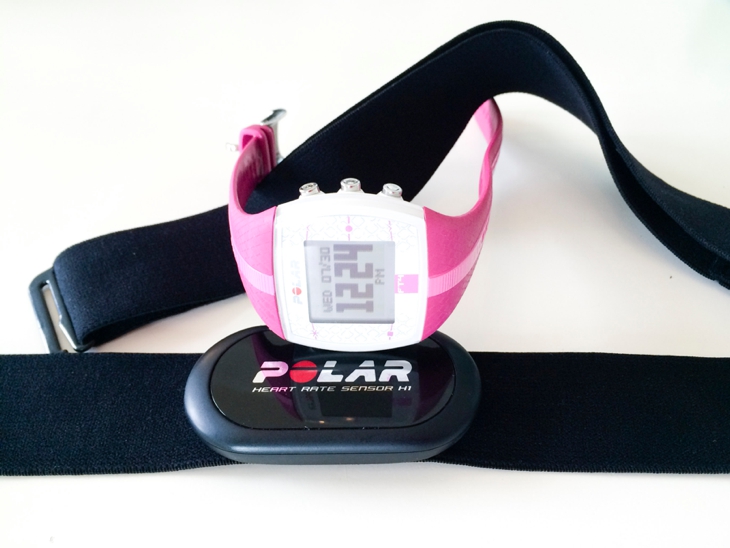
 . It’s waterproof and works great even when I’m moving around a lot. And, the band that wraps around your body is super comfortable (I’ve worn some that are really uncomfortable) and flexible so you really don’t even notice you’re wearing it when you exercise. Some of the exercise routines I do require a lot of up and down movements (hello burpees) and it stays on great and doesn’t dig into my ribs. Definite plus.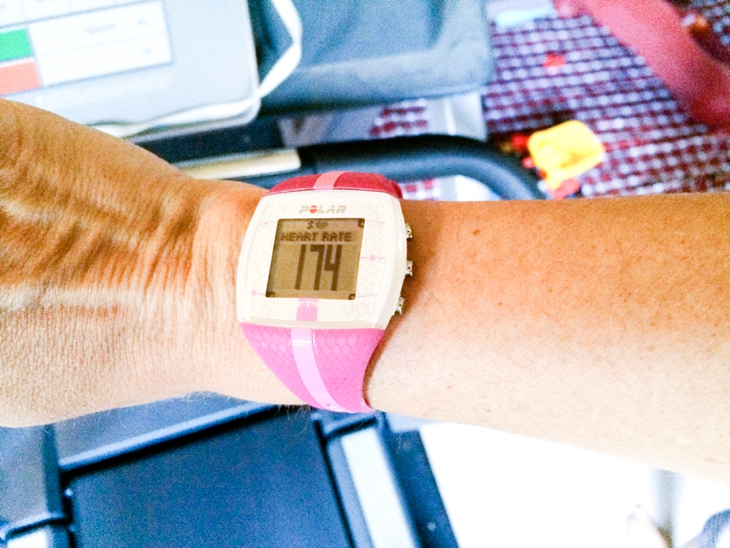
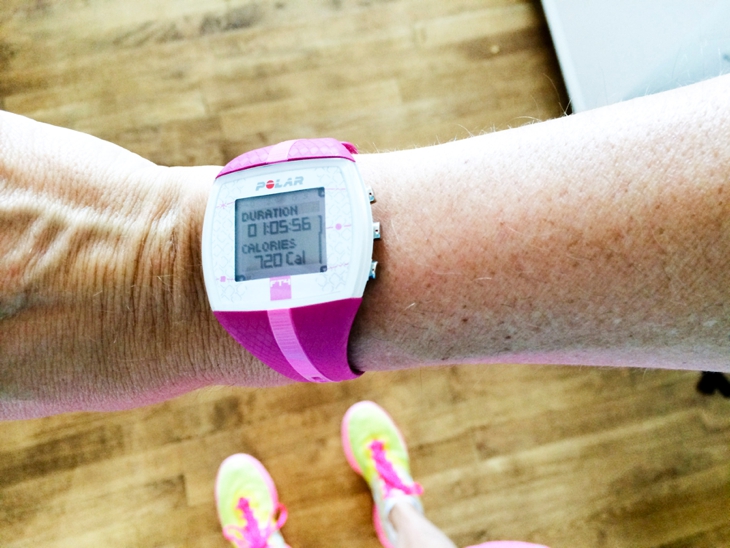 6. Running outside
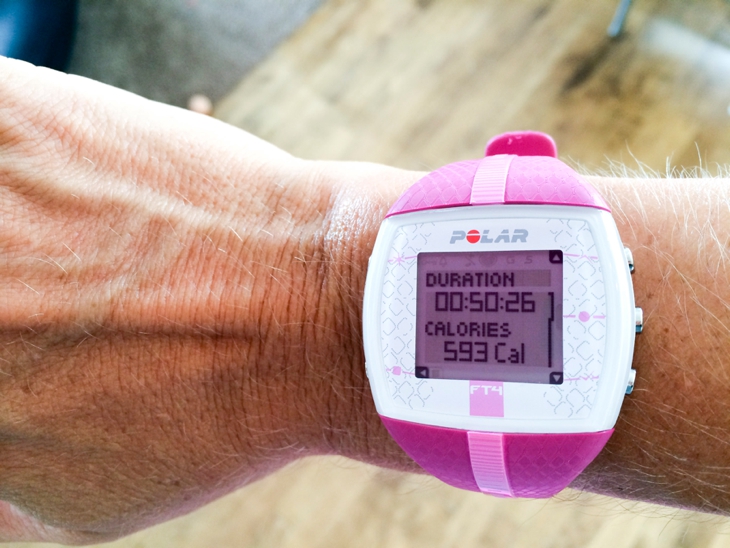 9.
9. 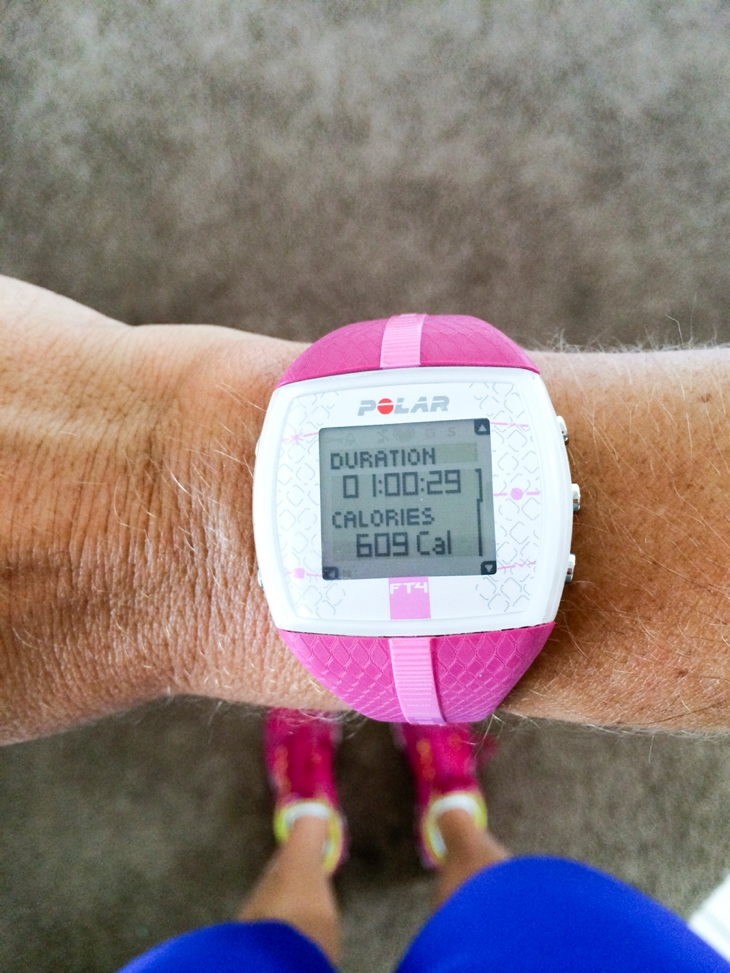 12.
12. 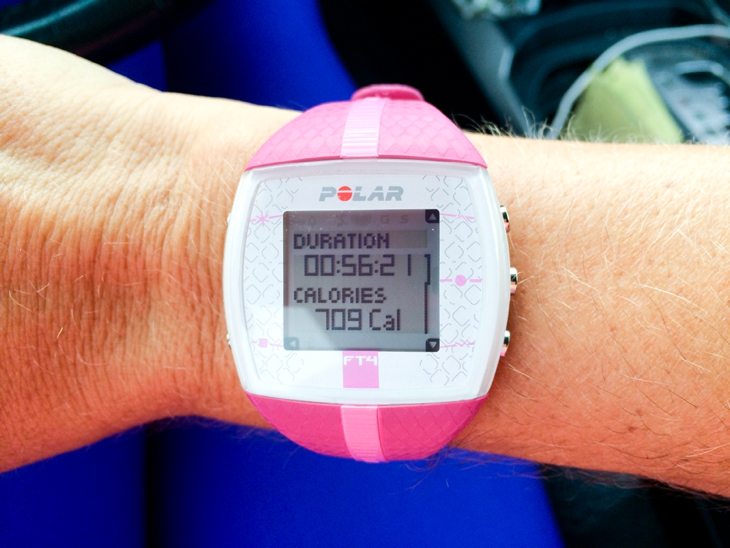 I’m all about being efficient. Especially when it comes to exercise. Since I’ve started wearing my heart rate monitor, it’s easier to know how many calories I need to eat each day to lose weight, maintain weight, or gain muscle. And it motivates me to work harder to get my heart rate up and burn more calories. Go get yourself one here: